 Acer File Extensions |
Advent 5365 Laptop
Specification
| CPU | Intel Pentium III 650MHz |
| Memory | 64MB PC100/PC133 SDRAM SODIMM (2 memory slots. Max 256MB) |
| Hard Drive | 6 GB (removable) |
| CD Drive | 6 x Torisan DRD U624 DVD ROM |
| Floppy Drive | Floppy disk drive fitted |
| Screen | 13.3" TFT |
| Video Card | ATI Rage LT Pro 8MB |
| Sound Card | ESS Maestro 2E |
| Modem | Conexant HSF 56k Fax modem V.90 |
| PC Card | Will take either 2x Type II or 1x Type III |
| Ports | 1x Kensington Lock 2x PC Card slots 1x IR 1x Line-in 1x Microphone 1x Headphone 1x Modem 1x PS/2 2x USB 1x Expansion Port 1x Serial Port 1x VGA 1x S-Video (TV-Out) 1x Parallel |
| Made By | Gericom 3xC Series |
Upgrading the Memory
The memory slots on this laptop are accessed by removing the keyboard. To do this -
- Turn the system power off
- Press the two keyboard latches to elevate the keyboard from it normal position
- Carefully lift the keyboard assembly out so that the mainboard is exposed. You should see the memory slots in the middle.
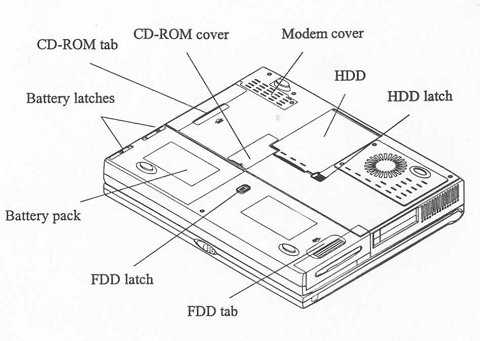
Bottom of Laptop
Function Keys
Fn+F3 - Expand LCD display
Fn+F6 - Toggle CRT/LCD/LCD+CRT/TV/CRT+TV
Fn+F9 - Decrease LCD brightness
Fn+F10 - Increase LCD brightness
Fn+F11 - Decrease audio volume
Fn+F12 - Increase audio volume
Fn+Z - Toggle audio mute on/off
Fn+Esc - Suspend/resume
In the Box
Disks Supplied
- Recovery boot floppy disk
- Recovery CD ROM
- Supervoice CD
- DVD ROM and suspend driver floppy disk
Items Supplied
- Advent 5365 notebook
- Mains power adapter
- Mains power cable
- UK modem cable
- S-Video cable
Documentation Supplied
- Advent notebook user's manual
- User guide for fax modem
- Freeserve leaflet
Recovery
Warning: this process will erase all files from your computer. It is important that you save any personal files to disk before you begin.
Two methods of recovery are available for this model -
Method 1
- Insert the recovery CD and floppy disk and restart your computer.
- Follow the onscreen prompts to recover Windows.
- Once Windows is installed you will need to install the drivers. These can be found on recovery CDs.
- This process takes approximately 2 hours.
Method 2
Note - This method should only be used with the new CDs posted to you after the purchase of your computer.
A bootable recovery CD is supplied with these machines
To recover the system:-
- Insert CD (and floppy disk if supplied) into the drive.
- Reboot the PC.
- A warning message prompting the user to backup data before proceeding.
- Press Y to continue.
- A final warning that all data will be erased is displayed.
- Press Y to continue.
- Finally a message "Remove CD-ROM when prompted" is displayed.
- Press Y to continue.
- The image file will load. Once complete the user is prompted to remove the CD and press CTRL + ALT + DEL to restart.
FAQ
Laptop will not boot from the recovery CD
The boot sequence in the BIOS is not set correctly. You should enter the BIOS and set the first boot device as the CD ROM drive. Once this is done you should be able to run the recovery as normal.
Blank screen or EMM386 error after recovery
Once the recovery has completed the screen goes blank or an EMM386 error message is dispalayed. This happens because the laptop is having problems displaying the message to remove the CD and restart. Simply remove the CD from the drive and restart the laptop, first time setup will begin as normal.
Recovery procedure seems to take a long time to complete
The recovery carries out a full FDISK and format of the hard drive before the recovery begins. This is normal and the total recovery time is approximately 2 hours.
Windows is unable to detect a modem
When you try and connect to the internet Windows reports that the modem cannot be detected. This can happen because the recovery procedure has installed two standard modems. The solution is to remove both modems and restart the laptop. Windows should then detect and install the correct modem.