 Acer File Extensions |
Advent 5372 Laptop
Specification
| CPU | Intel Celeron 700MHz |
| Memory | 128MB PC133 SDRAM SODIMM (2 memory slots. Max 512MB) |
| Hard Drive | 6GB Toshiba MK6015MAP |
| CD Drive | Toshiba SD-C2502 DVD-ROM |
| Floppy Drive | Floppy disk drive fitted |
| Screen | 13.3" TFT |
| Video Card | SiS 630 8MB shared |
| Sound Card | SiS 7018 |
| Modem | SmartLink 56K - HAMR 5600 V.90 |
| Network Card | SiS 900 |
| PC Card | Will take either 2x Type I/II or 1x Type III |
| Ports | 1x IR 1x Kensington Lock 1x USB 1.1 1x Modem 1x PS/2 1x Microphone 1x Headphone 1x VGA 1x Serial 1x Parallel 1x LAN |
| Battery | UN340S1 (14.8v 3600mAh) |
| Made By | Gericom Webboy Series (340s2) |
Drivers
Your laptop should have been supplied with a "Utility and Driver CD" which contains a backup copy of all the drivers.
Upgrading the Memory
Many thanks to Tom Evans for the additional notes on how to remove the keyboard.
1. Ensure that the power is off, the unit is unplugged and the battery is removed.
2. Remove the keyboard by lifting the 3 small clips at the front of the keyboard with a small screwdriver. *
3. Lift the keyboard clear of the notebook, there is a ribbon cable attached to the keyboard so take care.
4. Now lift the metal keyboard protector from the case.
5. You now need to remove the metal cover in the middle of the case.
6. You now have access to the 2 memory slots.
* These consist of one located at approximately 2 cm from each end of the keyboard, and one additional one located in an odd, off centre position. This central one is the most difficult to find, as it lies approximately 1.5cm to the right of the right edge of the mouse pad... directly below he scroll lock indicator (but on the front of the keyboard). NOTE: You may also encounter a difficulty in that the key locks may not be accessible without first prying the keyboard from its metal backing (or at least in my case it was). I suspect that after slipping the keyboard in place, the very small spring loaded keys simply released and slipped between the keyboard base and it's metal backing.
Bottom of Laptop
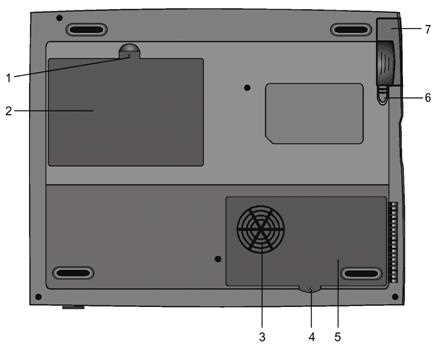
1. Fixing screw
2. Hard drive bay
3. CPU heatsink / fan grill
4. Fixing screw
5. CPU heatsink cover
6. Battery latches
7. Battery pack
Function Keys
FN + F1 - Hibernate
FN + F3 - Battery Low Warning Beep on/off
FN + F4 - Toggle the display between LCD, CRT, LCD+CRT
FN + F5 - Increase volume
FN + F6 - Decrease volume
FN + F7 - Increase brightness
FN + F8 - Decrease brightness
FN + Num Lock - Activate Numeric Keypad
Note - The Fn + F9/F10 contrast control keys don't work on the 5372 as it has a TFT display. These keys are only designed to work on older models using Dual Scan DSTN screens.
In the Box
Disks Supplied
- Recovery CD ROM
- PowerDVD (serial number on CD sleeve)
- Drivers CD
Items Supplied
- Advent 5372 notebook PC
- Mains power adapter
- Mains power cable
- UK modem cable
Documentation Supplied
- Advent notebook user's manual
- User guide for fax modem
- Freeserve leaflet
- Getting started with Microsoft Windows 98
Recovery
Warning: this process will erase all files from your computer. It is important that you save any personal files to disk before you begin.
Two methods of recovery are available for this model -
Method 1
- Insert the recovery CD and floppy disk and restart your computer.
- Follow the onscreen prompts to recover Windows.
- Once Windows is installed you will need to install the drivers. These can be found on recovery CDs.
- This process takes approximately 2 hours.
Method 2
Note - This method should only be used with the new CDs posted to you after the purchase of your computer.
A bootable recovery CD is supplied with these machines
To recover the system:-
- Insert CD (and floppy disk if supplied) into the drive.
- Reboot the PC.
- A warning message prompting the user to backup data before proceeding.
- Press Y to continue.
- A final warning that all data will be erased is displayed.
- Press Y to continue.
- Finally a message "Remove CD-ROM when prompted" is displayed.
- Press Y to continue.
- The image file will load. Once complete the user is prompted to remove the CD and press CTRL + ALT + DEL to restart.
FAQ
Blank screen or EMM386 error after recovery
Once the recovery has completed the screen goes blank or an EMM386 error message is dispalayed. This happens because the laptop is having problems displaying the message to remove the CD and restart. Simply remove the CD from the drive and restart the laptop, first time setup will begin as normal.
Replacing the CMOS Battery
The laptop takes a standard CR2025 battery. Access to the battery is from underneath the laptop. First remove the CPU exhaust cover flap, next remove the CPU exhaust itself. This should give you access to a gold coloured flap under which you'll find the battery.