 Acer File Extensions |
Advent 7064M Laptop
Specification
| CPU | Intel Celeron M 340 (1.50 GHz) |
| BIOS | AMI BIOS. Press DEL to enter |
| Chipset | Intel 855GME |
| Memory | 256MB PC2700 DDR SODIMM (1 memory slot. Max 1GB) |
| Hard Drive | 40GB Seagate ST94813A ** |
| CD Drive | QSI DVD/CDRW SOSW-852S |
| Screen | 12.1" TFT (native resolution 1024x768) |
| Video Card | Intel 855GME Extreme Graphics 2 (64MB) |
| Sound Card | Realtek AC'97 |
| Network Card | Realtek 8139/810X (onboard) Intel Pro 2200BG wireless LAN * |
| Modem | SmartLink 56K V.92 (Billionton Systems MDC56S-I) |
| PC Card | 1x Type I/II |
| Ports | 1x Kensington Lock 1x VGA 1x Modem 1x LAN 1x PC Card 1x Headphone 1x Microphone 1x 3-in-1 card reader (supports SD, MMC, and Memory Stick cards) 3x USB 2.0 |
| Touchpad | Synaptics Touchpad |
| Power Supply | Lishin LSE9802A2060 |
| Battery | E12 Series (11.1v 4400mAh) |
| Dimensions | 28 x 245 x 283 (HxWxD in mm) |
| Weight | 2kg |
| Made By | E12B Averatec 3300 |
* To activate the wireless LAN card inside your computer press the WLAN button to the left of the power button.
** May have a Fujitsu MHT2040AT fitted instead.
Drivers
Your laptop should have a backup copy of all the drivers, you can find it by browsing to the c:\applications\drivers folder.
Memory Upgrades
This laptop has one memory slot which is accessed by removing the memory module cover underneath the laptop (see "Bottom of Laptop" image below).
Bottom of Laptop
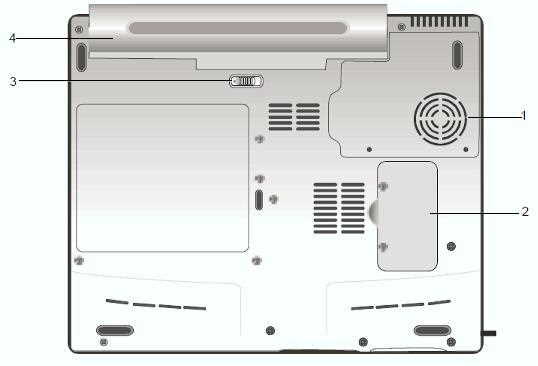
- CPU Cover
- Memory Cover
- Battery Release
- Battery
Function Keys
Fn + F3 - Switches off the Display
Fn + F4 - Enter Standby mode
Fn + F5 - Toggle the display between LCD, CRT, LCD+CRT, TV
Fn + F6 - Decrease display brightness
Fn + F7 - Increase display brightness
In the Box
Disks Supplied
- Advent V4 Recovery CD
- Microsoft Works 8
Items Supplied
- Advent 7064M notebook
- LiteOn power supply. Output: 19V - 3.16A
- Mains power cable
- UK modem cable
Documentation Supplied
- Advent notebook manual
- Microsoft Windows XP Home Edition "Start here" guide
Recovery Disc
Due to the nature of the recovery process you should not use FDISK or any other partition management software to delete the partition on your Advent computer. Doing so will prevent the recovery from functioning correctly. If the recovery asks for a second CD you will need to obtain an Update CD from Advent.
To recover your Advent PC you will need your Advent System Recovery CD.
- Insert System Recovery CD 1
- Restart your computer.
- Press R on the keyboard when prompted.
- The recovery will load and display a menu of options:
- Non-destructive recovery: this option will restore Windows, supplied applications, and drivers. This option will not destroy your documents or programs. These will be backed up along with the registry. These are restored at the end of the recovery process.
- System Recovery - No format: this will reinstall Windows, supplied applications and drivers. It will move your files to a folder called "My old disk structure". Any applications (except those supplied) will need to be reinstalled.
- System Recovery - Quick format: this option will erase your hard drive including your personal files. Windows, supplied applications and drivers will be reinstalled.
- Select the Non-destructive recovery option and press Next.
- You will be informed about System Restore in Windows, click Yes.
- The recovery will begin. Once this is complete click Restart.
Additional information.
Press the ALT and D keys at the recovery menu to access a command prompt. This will allow access to C: drive. The command prompt will default to c:\minint\system32 where you can run a variety of tools including CHKDSK.EXE.
Reinstalling applications
From version 2.x of the recovery system onwards you can install applications from the c:\applications folder. Drivers can be installed from the c:\applications\drivers folder and utilities from the c:\applications\tools folder. You will still need to install Microsoft Works from the supplied CD.
FAQ
Upsidedown Picture on Screen
When using the laptop the picture appears to be on its side or upsidedown. The Intel Extreme graphics driver has a rotate option which can cause this to happen. To set the screen back to normal hold down CTRL+ALT and press the Up Arrow key. To disable the feature go into Display Properties (right click on a blank part of the screen and select Properties), select the Settings tab, and click on Advanced. Select the "Intel Graphics Media Accelerator Driver" tab and then click on the Graphics Properties button. Finally select Display Settings, take the tick out of the "Enable Rotation" box, and then click on OK to disable the feature.
Realtek 8139 Network Card Not Connecting
Some machines fitted with a network card based on the Realtek 8139 chip will fail to send and receive data correctly. This can happen if the autodetect feature of the card is not detecting the connection properly. To get round this the connection speed of the card must be set manually
- Right-click upon the My Computer icon and select Properties.
- Select the Hardware tab and click on the Device Manager button.
- Click on the + next to Network Adapters.
- Select the entry for Realtek 8139 from the list and double click upon it.
- Select the Advanced tab.
- Select the entry for Link Speed / Duplex Mode.
- Change the Value setting from Auto to one that is appropriate for the connection (often 100 Full for a connection directly to another PC and 10 Full for a broadband connection).