 Acer File Extensions |
Advent 7102 Laptop
Specification
| CPU | AMD Mobile Sempron 3000+ (1.8GHz) |
| BIOS | AMI BIOS. Press DEL to enter |
| Chipset | ATI Radeon Xpress 200 |
| Memory | 1GB 200pin DDR-333 SODIMM (2 memory slots. Max 2GB) |
| Hard Drive | 40GB |
| CD Drive | HL-DT-ST DVD-RW GWA-4082N |
| Screen | 15.4" widescreen TFT (native resolution 1280x800) |
| Video Card | ATI Radeon Xpress 200M IGP (up to 128MB shared) |
| Sound Card | Realtek AC'97 audio |
| Network Card | Realtek 8139/810X (onboard) Marvell Wireless Card (possibly the Libertas 802.11g/b) * |
| Modem | Agere Systems AC'97 |
| PC Card | None |
| Ports | 4x USB 2.0 1x LAN 1x Modem 1x Headphone 1x Microphone 1x S-Video (TV-Out) 1x VGA 1x Kensington Lock |
| Touchpad | Synaptics Touchpad |
| Power Supply | Lite-On PA-1700-02 |
| Battery | EM-G330L2 (11.1v 4400mAh) |
| Dimensions | 40 x 355 x 273 (HxWxD in mm) |
| Weight | 2.85kg |
| Made By | ECS 331 |
* Wireless LAN on/off button is to the right of the power button.
Drivers
Your laptop should have a backup copy of all the drivers, you can find it by browsing to the c:\applications\drivers folder.
Memory Upgrades
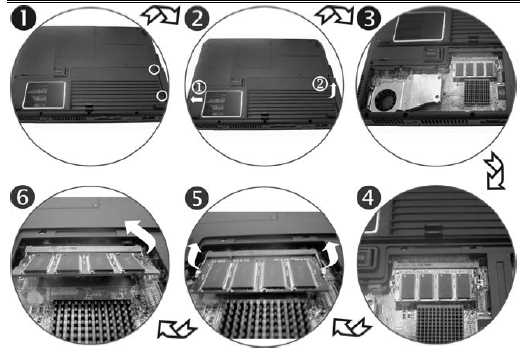
This laptop has two memory slots. The first is accessed from underneath the laptop -
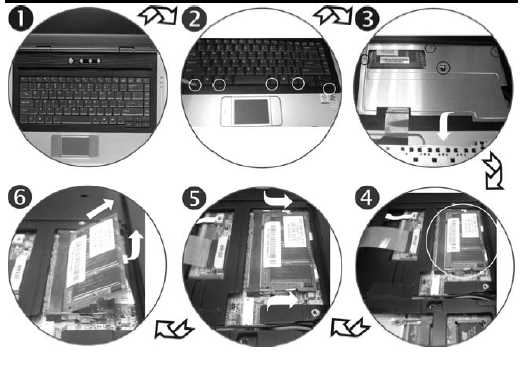
The second slot is a bit more fiddly as its under the keyboard. Remove the keyboard by releasing the 5 retractable clips at the front of the keyboard with a small screwdriver. Then lift the keyboard clear of the notebook, there is a ribbon cable attached to the keyboard so take care. The memory slot is underneath a metal panel which is held in by four screws.
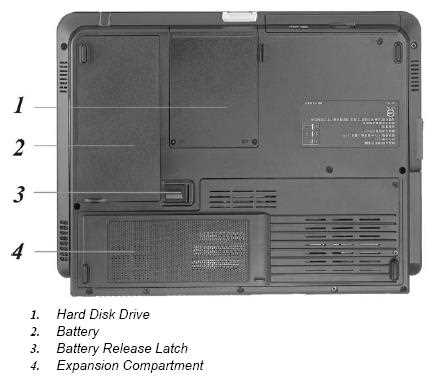
Bottom of Laptop
Function Keys
Fn + F1 - Turns battery beeping sound on/off
Fn + F2 - Mute sound
Fn + F3 - Decrease speaker volume
Fn + F4 - Increases speaker volume
Fn + F5 - Enable/disable touchpad
Fn + F7 - Decrease display brightness
Fn + F8 - Increase display brightness
Fn + F10 - Expand display or reset to original size
Fn + F12 - Toggles the display between LCD, CRT, LCD/CRT, TV, CRT/TV
Fn + NumLk - Enable/disable numeric keypad
In the Box
Disks Supplied
- Microsoft Works 8
- Notebook utility CD
Items Supplied
- Advent 7102 notebook
- LiteOn power supply. Output: 19V - 3.42A
- Mains power cable
- UK modem cable
Documentation Supplied
- Microsoft Windows XP "Start Here" guide
Recovery Disc
Due to the nature of the recovery process you should not use FDISK or any other partition management software to delete the partition on your Advent computer. Doing so will prevent the recovery from functioning correctly.
Using the HDD Recovery System
Your Advent computer uses the latest recovery system that doesn't require any CDs or DVDs to restore your PC to it's original factory condition.
- There are two ways to start the recovery -
- Restart your computer. Then Press F10 repeatedly until the message "Starting System Recovery" is displayed.
- In Windows by clicking: Start / All Programs / System Recovery / System Recovery.
- The recovery will load and display a box with one option:
- Non-destructive recovery: this option will restore Windows, supplied applications, and drivers. This option will not destroy your documents or programs. These will be backed up along with the registry. These are restored at the end of the recovery process.
- System Recovery - No format: this will reinstall Windows, supplied applications and drivers. It will move your files to a folder called "My old disk structure". Any applications (except those supplied) will need to be reinstalled.
- System Recovery - Quick format: this option will erase your hard drive including your personal files. Windows, supplied applications and drivers will be reinstalled.
- Select the Non-destructive recovery option and press Next.
- You will be informed about System Restore in Windows, click Yes.
- The recovery will begin. Once this is complete click Restart.
Additional information
Press the ALT and D keys at the recovery menu to access a command prompt. This will allow access to C: drive. The command prompt will default to c:\minint\system32 where you can run a variety of tools including CHKDSK.EXE.
Reinstalling applications
From version 2.x of the recovery system onwards you can install applications from the c:\applications folder. Drivers can be installed from the c:\applications\drivers folder and utilities from the c:\applications\tools folder. You will still need to install Microsoft Works from the supplied CD.
Using the Recovery Media
If the HDD recovery doesn't work then you can recover from the discs you should have created. To use the discs (This will completely erase all your data) -
- Start the computer with the recovery CD or DVD in the DVD drive
- If the HDD already has the recovery partition in place, then you will get a screen with two options.
- Press ‘F’ . This will delete & recreate the recovery partition, then restore the user partition. Do not choose option 'R' at this screen. If you select ‘R’ from the recovery CD start-up options, then this will first check to see if the recovery partition is present on the HDD. If the recovery partition is on the HDD, then the PC will load into the recovery options screen from the recovery partition, and not from the recovery CD/DVD set.
- If a blank HDD has been put into the machine (or there are no partitions on the HDD), then you will only get the option to press 'R'. In this case, just press 'R' , and this will create the recovery partition.
- When all data is copied to the recovery partition, then the user partition is created and formatted.
How can I make a backup of the pre-installed software?
The Recovery Media Creator will remind you to create your recovery media every time you start Windows, unless you tell it to stop reminding you, dismiss it, or create the media.
To access the Media Creator start into Windows as usual, then Click Start / All Programs / System Recovery / Recovery Media Creator.
- You will be presented with a “Welcome” screen. Click Continue.
- You will be shown some information about the creation process. Click Continue and follow the on-screen instructions.
- Click Start Creation to create your System Recovery CD Set.
- The recovery creation software will advise you how many blank CDs/DVDs you will need to create your System Recovery set. A DVD has a much higher capacity than a CD and will require less discs.
- You will then be asked to insert a blank disc into your computer. Label this CD “Recovery CD 1” and then insert it into your DVD/CD Rewriter drive.
- Once you have inserted your blank disc the process should continue – If it does not, click OK to continue.
- The creation process will continue until you are prompted for a 2nd CD. Label this CD “Recovery CD 2” and then insert it into your DVD/CD Rewriter drive.
- Once the disc creation has completed you will see a “Congratulations” screen. Click OK and the program will exit.
- You have now created a complete set of Recovery disc(s) for your computer. These discs will allow you to restore your computer in case of any problems with your Windows XP software.
- Keep these discs in a safe place.
FAQ
How to Manually Run the Recovery Media Creator
If you've deleted the shortcut to Recovery Media Creator then don't panic. To run it manually open My Computer and browse to the C:\Windows\Creator folder and double click on CD Creator.
Does This Laptop Have an Infra-Red (IR) Port?
The answer to this is no. The Advent 7102 laptop was originally made by a company called ECS and is based on the ECS-331 (it should mention this underneath somewhere). One of the optional extras on the ECS-331 was a built-in TV card and according to the manual what looks like an infra-red port on the front of the laptop is actually a receiver for a TV remote control. As the Advent 7102 doesn't have the optional TV card fitted the port on the front doesn't do anything.
Wireless card stops working after upgrading to Windows Vista
After upgrading to Windows Vista everything works fine apart the Marvell Wireless card, when you press the button nothing happens.
There seems to be three different ways of solving this problem (there is a fourth - don't install Vista) and I've listed them below, hopefully at least one should work for you.
The first solution is to press the wireless button while Windows Vista is loading, you have to be quick though as it only works if you press the button between the loading scrolling lines logo (after the post screen) and before the windows logo appears.
The second is to go into Device Manager, select the Marvell Wireless card and then go to Properties>Advanced>Default Adhoc Mode. Here change the Default Adhoc mode to B or G. When you confirm the change the wireless connection should become active, if it doesn't then press the wireless button and try changing the setting again.
The third method is to create a desktop shortcut to the wireless adapter. Go to [Network and Sharing Centre]>[Manage Network Connections] and then right click the wirless connection and choose Create Shortcut. You can then switch on the wireless at any time, just point at the shortcut then right click and chose Disable. Once its disabled right click on the shortcut again and choose Enable. It should then connect within 20-30 seconds.
Right-hand side of the keyboard not working properly
When trying to use the right-hand side of the keyboard none of the keys work properly, for example when you press 'J' you get the number '1'.
This happens because the Numeric Keypad has been switched on, to turn it off hold down the 'Fn' key and press 'NumLk'.