 Acer File Extensions |
Advent 7115 Laptop
Specification
| CPU | Intel Celeron M 430 (1.73 GHz) |
| BIOS | AMI BIOS. Press DEL to enter |
| Chipset | Intel 943GML (Calistoga) + ICH7-M |
| Memory | 1GB 200pin DDR2-400/533 SODIMM (2 memory slots. Max 2GB) |
| Hard Drive | 80GB Fujitsu MHV2080BH |
| CD Drive | TSSTcorp CDDVDW TS-L632D *** |
| Screen | 15.4" Widescreen TFT (1280x800) |
| Video Card | Mobile Intel 945GM Express Chipset Family (up to 128MB shared) |
| Sound Card | Realtek ALC883 High Definition Audio |
| Modem | Agere systems AC'97 |
| Network Card | Realtek RTL8168/8111 PCI-E Gigabit Ethernet RaLink RT2500 Wireless LAN * |
| PC Card | None ** |
| Ports | 4x USB 2.0 1x LAN 1x Modem 1x Headphone 1x Microphone 1x S-Video (TV-Out) 1x VGA 1x Kensington Lock |
| Touchpad | Synaptics Touchpad |
| Battery | EM-G330L2 (11.1v 4400mAh) |
| Power Supply | Lite-On PA-1700-02 |
| Dimensions | 40 x 355 x 273 (HxWxD in mm) |
| Colour | Pink |
| Weight | 2.85kg |
| Made By | ECS G335 |
* Use button to right of power button to switch wireless on/off.
** The label on the front of the case mentions that the laptop has an "Express Cord slot". I'm guessing that this is a printing error and they meant "Express Card slot" though as far as I know the laptop doesn't have one fitted. If anyone can help clear this up then please get in touch!
*** May have a HL-DT-ST DVD-RW GSA-T11N drive fitted instead.
Drivers
Your laptop should have been supplied with a "Notebook Utility CD" which contains a copy of the drivers and user manual.
Memory Upgrades
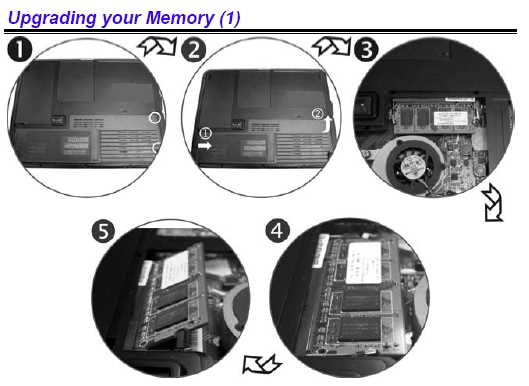
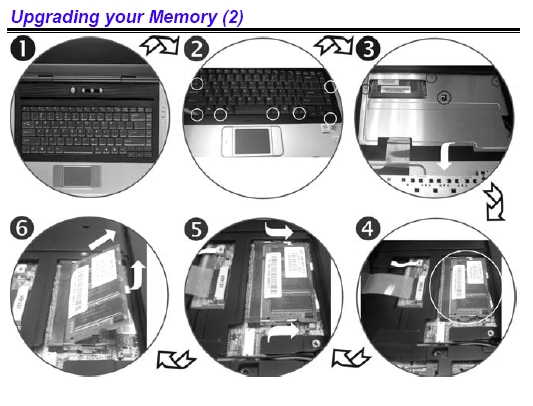
This laptop has two memory slots, the first slot is accessed from underneath the laptop and the second by removing the keyboard.
The slot underneath is fairly straightforward, simply remove the two screws highlighted and then remove the panel to access the memory slot.
The second slot is a bit more tricky. The keyboard is held in by several clips which you should be able to release using a small screwdriver. Be careful lifting the keyboard out as it is held in by a thin ribbon cable. Next remove the metal cover in the middle of the case, this is held in by four screws. This should give you access to the memory slot.
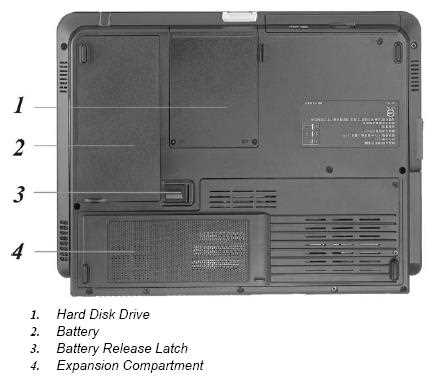
Bottom of Laptop
Function Keys
Fn + F1 - Turns battery beep on/offFn + F2 - Mute sound
Fn + F3 - Decrease speaker volume
Fn + F4 - Increases speaker volume
Fn + F5 - Turn touchpad on/off
Fn + F7 - Decrease display brightness
Fn + F8 - Increase display brightness
Fn + F10 - Expand your video screen or reset to its original size
Fn + F12 - Toggle the display between LCD, CRT, LCD+CRT, and TV
Fn + NumLk - Enables Num Lock
In the Box
Disks Supplied
- Microsoft Works 8.5
- Notebook Utility CD
- NTI CD Maker CD
Items Supplied
- Advent 7115 notebook
- LiteOn power supply. Output: 19V - 3.42A
- Mains power cable
- UK modem cable
Documentation Supplied
- Advent Safety and Regulations Manual
- Advent Notebook Manual
- Advent Recovery Manual
Recovery Disc
Hard Drive Recovery
Should your Windows develop serious errors or fail to start, you can restore your computer back to factory settings by using the hard drive recovery located on a hidden partition on the hard drive.
To restore your computer back to factory settings, follow the steps below:
- Turn on the computer and keep tapping F8 until the advanced options menu is displayed
- Use the up/down arrow keys on the keyboard to highlight Repair Your Computer and press enter to select it
- Select the language you wish to install (normally English is the only option)
- Once you have chosen your language you will be presented with the available recovery options
- Microsoft Repair Environment - after choosing the UK keyboard layout you will be asked to choose the Operating System you wish to repair. If Windows Vista is not listed then you cannot repair the OS without doing the full recovery. After choosing Vista the Microsoft Vista startup repair tool will run and attempt to repair any startup problems you are experiencing
- Reinstall Windows - gives you the options available to reinstall Vista
- Advanced Options - this launches the diagnostic centre allowing you to run chkdsk, launch notepad or bring up a command prompt
- Exit & restart computer - Exits withut running the recovery process
- To continue with the recovery program you need to choose Reinstall Windows
- On the next screen you have the ability to launch Vista System Restore and roll back to a date when Vista was last working ok or to run the Full Destructive Recovery. To continue with the recovery program you need to choose Start Full Destructive Recovery
- After choosing the Full Destructive Recovery option you are presented with the warning screen that all data will be lost. It is important to make sure all data has been backed up to disk if possible and to realise this process deletes all data and reverts the machine back to it's default state. To continue with the recovery program you need to tick the box indicating you are aware of data loss
- The recovery process will then run through, the computer will restart a couple of times during this. You will also need to go through the Vista "Out of Box Experience", to configure Vista. This is fairly straightforward so just follow the onscreen instructions
Recovery DVD Creator
Your computer comes supplied with a hard drive based recovery allowing you to reinstall Windows Vista very easily should the need arise. You also have the ability to create a recovery DVD which is recommended on all machines. To create a recovery DVD (note - you cannot use CDs) do the following.
- Double click on the Techguys DVD icon on the desktop or from the start menu
- The first screen will prompt you to insert a DVD into your drive. Click OK.
- On the next screen make sure your DVD drive is selected in the 'To' field. To reduce the risk of errors ensure the write speed is set to the lowest value and tick verify recorded data. Click Burn
- Once the process has completed, label your DVD, keep it in a safe place and in a protective case to avoid damage
DVD Recovery
Should your Windows develop serious errors or fail to start, you can restore your computer back to factory settings by using the Recovery DVD you may have created or been sent.
To restore your computer back to factory settings, follow the steps below.
- Start the computer with the Recovery DVD in the optical disc drive
- After the usual startup screen has vanished press a key when prompted to load from the DVD
- Select the language you wish to install (normally English is the only option)
- Once you have chosen your language you will be presented with the available recovery options
- Microsoft Repair Environment - after choosing the UK keyboard layout you will be asked to choose the Operating System you wish to repair. If Windows Vista is not listed then you cannot repair the OS without doing the full recovery. After choosing Vista the Microsoft Vista startup repair tool will run and attempt to repair any startup problems you are experiencing
- Reinstall Windows - gives you the options available to reinstall Vista
- Advanced Options - this launches the diagnostic centre allowing you to run chkdsk, launch notepad or bring up a command prompt
- Exit & restart computer - Exits withut running the recovery process
- To continue with the recovery program you need to choose Reinstall Windows
- On the next screen you have the ability to launch Vista System Restore and roll back to a date when Vista was last working ok or to run the Full Destructive Recovery. To continue with the recovery program you need to choose Start Full Destructive Recovery
- After choosing the Full Destructive Recovery option you are presented with the warning screen that all data will be lost. It is important to make sure all data has been backed up to disk if possible and to realise this process deletes all data and reverts the machine back to it's default state. To continue with the recovery program you need to tick the box indicating you are aware of data loss
- The recovery process will then run through, reinstalling Vista and also recreating the hard drive recovery system for future use.
- When it has finished copying files it will ask you to remove the DVD and then restart the computer. It will then go through setting up Vista, you will need to go through the Vista "Out of Box Experience". This is fairly straightforward so just follow the onscreen instructions