 Acer File Extensions |
Advent 8111 Laptop
Specification
| CPU | Intel Core Duo T2050 (1.6GHz) |
| BIOS | Phoenix BIOS. Press F2 to enter |
| Chipset | Mobile Intel 945GM Express |
| Memory | 1GB DDR2 PC2-4200 533MHz SODIMM (2 memory slots. Max 2GB) |
| Hard Drive | 80GB Toshiba MK8034GSX ** |
| CD Drive | Lite-on Slimtype DVDRW SSW-8015S |
| Screen | 15.4" widescreen TFT (native resolution 1280x800) |
| Video Card | Intel 945GM (up to 128MB shared) |
| Sound Card | Realtek ALC883 High Definition Audio |
| Modem | Integrated 56Kbps modem |
| Network Card | Realtek 8139 / 810X (Onboard) Intel Pro 3945ABG wireless LAN |
| PC Card | 1 x ExpressCard slot |
| Ports | 1x Headphone 1x Microphone 1x Modem 3x USB 2.0 1x ExpressCard 1x LAN 1x S-Video (TV-Out) 1x VGA 1x 4-in-1 Card Reader (supports SD, MMC, MS, MS-PRO cards) 1x IEEE1394 (FireWire) 1x Kensington Lock |
| Touchpad | Synaptics Touchpad |
| Battery | L51-3S4400-C1L3 (10.8v 4400mAh) L51-3S4000-S1P3 (10.8v 4000mAh) L51-4S2200-G1B1 (14.8v 2200mAh) L51-3S4000-G1L1 (11.1v 4000mAh) L51-4S2000-C1L1 (14.8v 2000mAh) L51-4S2000-G1L1 (14.8v 2000mAh) L51-4S2200-G1L3 (14.4v 2200mAh) |
| Dimensions | 28 x 235 x 258 (HxWxD in mm) |
| Weight | 2.7kg |
| Colour | Silver |
| Made By | Uniwill L51II5 |
* Wireless Lan on/off switch on front of laptop (next to microphone socket)
** May have an 80GB Fujitsu MHV2080BH-PL drive or an 80GB Toshiba MK8032GSX drive fitted instead.
Drivers
Your laptop should have a backup copy of all the drivers, you can find it by browsing to the c:\applications\drivers folder.
Memory Upgrades
This laptop has two memory slots, one of which is accessed by removing the panel underneath the laptop the other by removing the keyboard.
To install the DIMM under the System Device Cover, do the following:
- Power OFF the notebook. Unplug the AC cord and all cables/devices attached to the notebook. Remove the battery
- Place your hand on a large metal object momentarily to discharge any static electricity. Place the notebook on a flat surface and fully close the LCD lid
- Locate and remove 9 Screw A’s on the System Device Cover
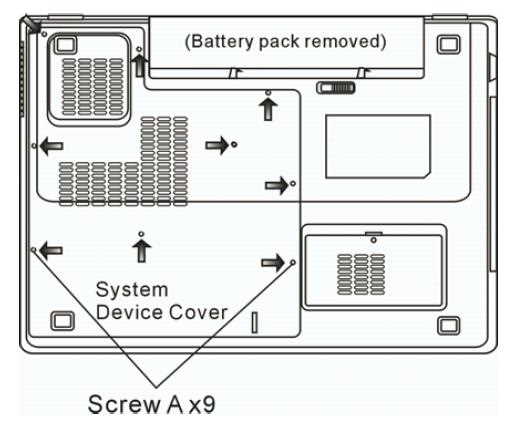
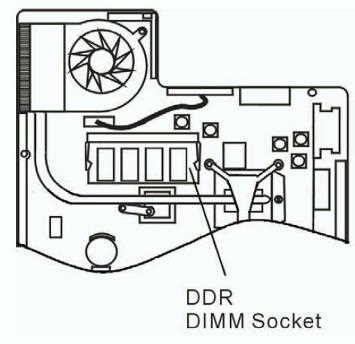
- Remove the System Device Cover. The DIMM socket is now visible
- If you need to remove an old DIMM from the socket, press out on the latches located on both edges of the socket at the same time. The DIMM should pop up to an angle of 30 degree. Pull the DIMM module out of the memory socket.
- Install the new DIMM module into the memory socket. The DIMM will only fit in one orientation. Insert the DIMM at an angle of approximately 30 degrees into the empty memory socket. Then press it firmly so that the contact edge is driven into the receiving socket
- Pivot the DIMM until the latches on both sides of the socket snap into place.
- Put the System Device Cover back and tighten 9 Screw A’s
To install the DIMM under the keyboard, do the following:
- Remove Screw D
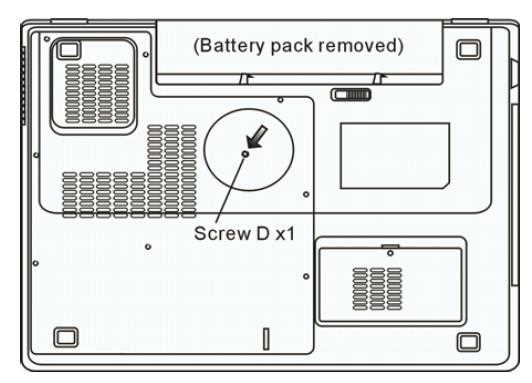
- Find the keyboard latches near the edges of the keyboard. The latch is spring-loaded. It will retract when pressed and revert back to its original position when released. Use a small blade to press the latch inward. The keyboard tray should pop up slightly over the latch. If the keyboard tray does not pop up, try to gently lift it up slightly above the latch. Repeat this step for the other keyboard latches
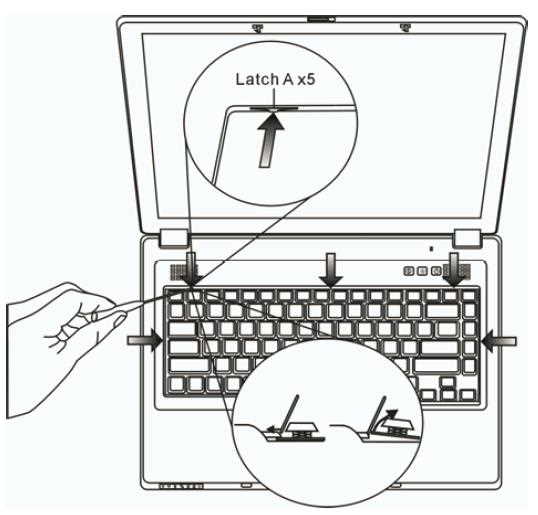
- Carefully lift up the top edge and position the keyboard out of the way
- The memory slot should now be visible. If you can't see it then it may be hidden under a metal plate which is accessed by removing the single retaining screw
- If you need to remove an old DIMM from the socket, press out on the latches located on both edges of the socket at the same time. The DIMM should pop up to an angle of 30 degree. Pull the DIMM module out of the memory socket
- Install the new DIMM module into the memory socket. The DIMM will only fit in one orientation. Insert the DIMM at an angle of approximately 30 degrees into the empty memory socket. Then press it firmly so that the contact edge is driven into the receiving socket
- Pivot the DIMM until the latches on both sides of the socket snap into place
- Put the keyboard back to its original position. Make sure the edge of the keyboard now resides under the spring-loaded latches
- Re-attached Screw D
Bottom of Laptop
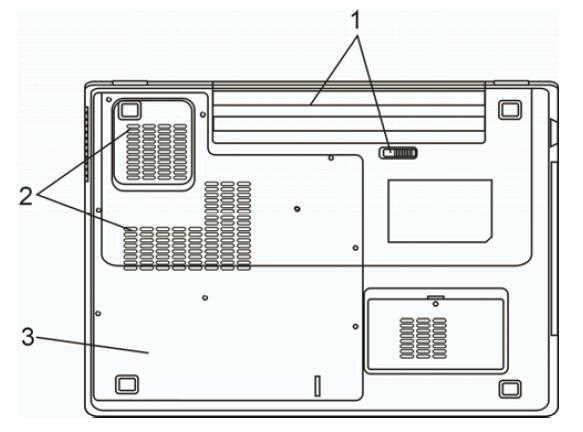
- Battery Pack and Battery Latch. Slide the battery latch to release the battery pack
- Ventilation Grill. Do not block this airway completely
- System Device Cover. The system’s processor with cooler assembly, Wireless LAN module, HDD, and DDR memory module are located under the case cover
Function Keys
Fn + F1 - Sleep Mode
Fn + F3 - Mute all audio (including system and battery beep)
Fn + F4 - Toggle the display between LCD, CRT, LCD+CRT and TV
Fn + F5 - Increase volume
Fn + F6 - Decrease volume
Fn + F7 - Increase brightness
Fn + F8 - Decrease brightness
In the Box
Disks Supplied
- Microsoft Works 8
- Notebook Utility CD
- NTI CD Maker CD
Items Supplied
- Advent 8111 notebook
- LiteOn power supply. Output: 19V - 3.42A
- Mains power cable
- UK modem cable
Documentation Supplied
- Microsoft Windows Media Center "Start Here" guide
- Advent notebook manual
Recovery Disc
Due to the nature of the recovery process you should not use FDISK or any other partition management software to delete the partition on your Advent computer. Doing so will prevent the recovery from functioning correctly.
Using the HDD Recovery System
Your Advent computer uses the latest recovery system that doesn't require any CDs or DVDs to restore your PC to it's original factory condition.
- There are two ways to start the recovery -
- Restart your computer. Then Press F10 repeatedly until the message "Starting System Recovery" is displayed.
- In Windows by clicking: Start / All Programs / System Recovery / System Recovery.
- The recovery will load and display a box with one option:
- Non-destructive recovery: this option will restore Windows, supplied applications, and drivers. This option will not destroy your documents or programs. These will be backed up along with the registry. These are restored at the end of the recovery process.
- System Recovery - No format: this will reinstall Windows, supplied applications and drivers. It will move your files to a folder called "My old disk structure". Any applications (except those supplied) will need to be reinstalled.
- System Recovery - Quick format: this option will erase your hard drive including your personal files. Windows, supplied applications and drivers will be reinstalled.
- Select the Non-destructive recovery option and press Next.
- You will be informed about System Restore in Windows, click Yes.
- The recovery will begin. Once this is complete click Restart.
Additional information
Press the ALT and D keys at the recovery menu to access a command prompt. This will allow access to C: drive. The command prompt will default to c:\minint\system32 where you can run a variety of tools including CHKDSK.EXE.
Reinstalling applications
From version 2.x of the recovery system onwards you can install applications from the c:\applications folder. Drivers can be installed from the c:\applications\drivers folder and utilities from the c:\applications\tools folder. You will still need to install Microsoft Works from the supplied CD.
Using the Recovery Media
If the HDD recovery doesn't work then you can recover from the discs you should have created. To use the discs (This will completely erase all your data) -
- Start the computer with the recovery CD or DVD in the DVD drive
- If the HDD already has the recovery partition in place, then you will get a screen with two options.
- Press ‘F’ . This will delete & recreate the recovery partition, then restore the user partition. Do not choose option 'R' at this screen. If you select ‘R’ from the recovery CD start-up options, then this will first check to see if the recovery partition is present on the HDD. If the recovery partition is on the HDD, then the PC will load into the recovery options screen from the recovery partition, and not from the recovery CD/DVD set.
- If a blank HDD has been put into the machine (or there are no partitions on the HDD), then you will only get the option to press 'R'. In this case, just press 'R' , and this will create the recovery partition.
- When all data is copied to the recovery partition, then the user partition is created and formatted.
How can I make a backup of the pre-installed software?
The Recovery Media Creator will remind you to create your recovery media every time you start Windows, unless you tell it to stop reminding you, dismiss it, or create the media.
To access the Media Creator start into Windows as usual, then Click Start / All Programs / System Recovery / Recovery Media Creator.
- You will be presented with a “Welcome” screen. Click Continue.
- You will be shown some information about the creation process. Click Continue and follow the on-screen instructions.
- Click Start Creation to create your System Recovery CD Set.
- The recovery creation software will advise you how many blank CDs/DVDs you will need to create your System Recovery set. A DVD has a much higher capacity than a CD and will require less discs.
- You will then be asked to insert a blank disc into your computer. Label this CD “Recovery CD 1” and then insert it into your DVD/CD Rewriter drive.
- Once you have inserted your blank disc the process should continue – If it does not, click OK to continue.
- The creation process will continue until you are prompted for a 2nd CD. Label this CD “Recovery CD 2” and then insert it into your DVD/CD Rewriter drive.
- Once the disc creation has completed you will see a “Congratulations” screen. Click OK and the program will exit.
- You have now created a complete set of Recovery disc(s) for your computer. These discs will allow you to restore your computer in case of any problems with your Windows XP software.
- Keep these discs in a safe place.